How to Open and Close Your Till on AskBiz POS
Step-by-step guide to starting a cashier session with the Open Till button — including how tills work, handling opening float, and what happens at end of day.
Key Takeaways
- Click 'Open till' from the top of any POS page to start a cashier session.
- Each till session is tied to a staff member's PIN — this keeps sales attributed correctly.
- Closing the till produces a session summary showing cash collected, card payments, and any discrepancies.
Starting your day: the Open Till button
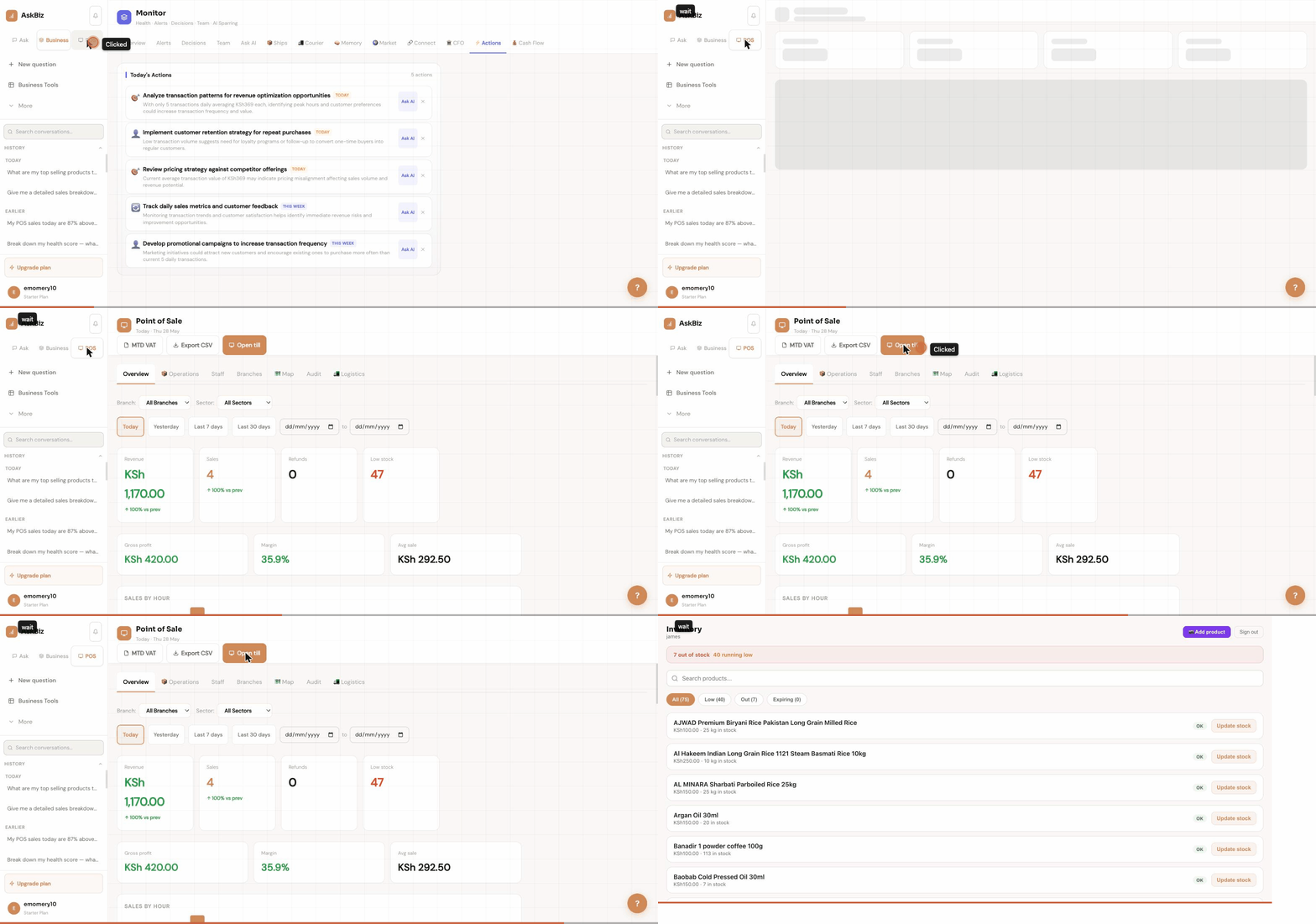
The 'Open till' button sits in the top-right area of every POS screen. Clicking it opens the till interface where a cashier can begin processing sales. Each session requires a staff PIN — this ensures every transaction is attributed to the correct cashier, which feeds into the Staff Performance data on the Overview. If you're the manager, you can also open a till on behalf of a cashier by entering their PIN.
Setting an opening float
When opening the till, you'll be prompted to enter the opening float — the amount of cash in the drawer at the start of the shift. Count your notes and coins and enter the total. This is important for end-of-day reconciliation: AskBiz compares your opening float plus cash sales to the actual cash in the drawer to identify any shortfalls or overages. If your business is card-only, you can set the float to zero.
Processing sales through the till
Once the till is open, the cashier can search for products by name or barcode, add them to the basket, apply any discounts or promotions, and complete the sale by selecting a payment method — cash, card, or split payment. AskBiz records the transaction instantly and updates inventory levels in real time. For returns, use the refund function within the till rather than manually adjusting stock.
Closing the till and reconciling cash
At end of shift, the cashier clicks Close till. AskBiz shows a summary: total cash sales, total card sales, expected cash in drawer (opening float + cash sales - any refunds), and a field to enter the actual cash counted. If these match, the session closes cleanly. Any variance is flagged and recorded in the Audit log so managers can investigate. The session data then flows into the Overview dashboard and Reports.